Copy PDF Table to Excel & Google Sheets
or drop PDF files here to copy PDF table to Excel spreadsheets locally with zero data uploads
or drop PDF files here to extract tables & convert data
Drag your mouse across the table grid above to isolate rows & omit unwanted headers/footers.
How to open CSV directly in Google Sheets:
- Download the .csv file using the green Google Sheets button above.
- Open Google Drive and click + New > File Upload.
- Double-click the uploaded CSV file and choose Open with > Google Sheets.
How to Copy PDF Table to Excel Spreadsheets
A lightning-fast 3-step visual workflow engineered for automated tabular coordinate parsing.
Upload your PDF or Bank Statement
Auto-detect or Draw Table Grid
Download Excel or Google Sheets
How Our Table Extraction Engine Works
Learn the underlying spatial geometry and WebAssembly parser behind our offline PDF to Excel converter.
Local Document Stream & Text Layering
Upload your file into local browser RAM. Our engine loads embedded vector typography without cloud transmission, making it the safest way to convert bank statement to Excel free.
Spatial 2D Matrix Alignment
Using global column clustering, text fragments are mapped into precise row and column bins based on horizontal baseline Y-offsets and vertical X-spacings.
Smart Multi-Page Merging
When financial tables span across 10 or 50 pages, our system recognizes repeated column headers and stitches continuous rows into a single, unified Excel sheet.
Native Binary XLSX & CSV Compilation
The parsed 2D grid compiles directly into standard OpenXML spreadsheet structures or RFC-4180 CSV strings ready for instant opening in Excel, Apple Numbers, and Google Sheets.
Powerful Performance Features
Engineered for large financial files, exact cell alignment, interactive box selection, and complete client-side security.
Copy PDF Table to Excel
Isolate complex tabular columns and rows with sub-pixel spatial accuracy and true numerical typing.
PDF to Excel Large File
Handle 100MB+ documents and 500-page accounting audits without encountering server timeout limits.
Convert Bank Statement to Excel Free
Intelligently stitches multi-page statements into a single continuous worksheet with zero manual cleanup.
Offline PDF to Excel Converter
100% Client-side WebAssembly execution keeps sensitive payroll, tax, and audit data securely on your device.
Interactive Draw & Extract
Highlight specific table boundaries on the visual canvas preview to omit unnecessary header boilerplate.
Pro-Portrait & Media Clarity
Preserves high-resolution charts, financial watermarks, and embedded portrait figures with DSLR-level fidelity.
Enterprise Guide: How to Copy PDF Table to Excel Accurately
Transform unstructured PDF tables, quarterly earnings, and multi-page banking records into clean, formula-ready Microsoft Excel and Google Sheets documents without remote data exposure.
Vector Coordinate Mapping vs. Manual Copy-Pasting
When financial analysts attempt to copy PDF table to Excel using basic clipboard selection, line breaks collapse, multi-line descriptions fragment across rows, and numeric currency symbols corrupt formula calculations.
Our automated parsing engine utilizes strict horizontal baseline grouping and global column anchor clustering. By calculating Cartesian coordinates and spatial column gaps, every column (like Sr No. and Name) is preserved in its own distinct column cell.
- Preserves numeric values as real numbers rather than unformatted text strings.
- Auto-detects multi-line cell descriptions without fragmenting surrounding columns.
- Seamlessly complies with modern SheetJS spreadsheet specifications and Google Sheets data import guidelines.
Handling PDF to Excel Large Files & Bank Statements
Most standard online converters fail when uploading a PDF to Excel large file containing hundreds of ledger entries. Cloud servers trigger 30-second gateway timeouts, while confidential customer information gets exposed to remote servers.
By utilizing in-browser WebAssembly compilation, our engine parses entire fiscal year ledgers in seconds. When you need to convert bank statement to Excel free, repeated page headers and running footers are detected and merged seamlessly into one unified master sheet.
- Processes 500+ page accounting ledgers without hitting remote server upload ceilings.
- Stitches multi-page Chase, Wells Fargo, and Bank of America statements cleanly.
- Retains embedded product photography and portrait media with DSLR-grade clarity.
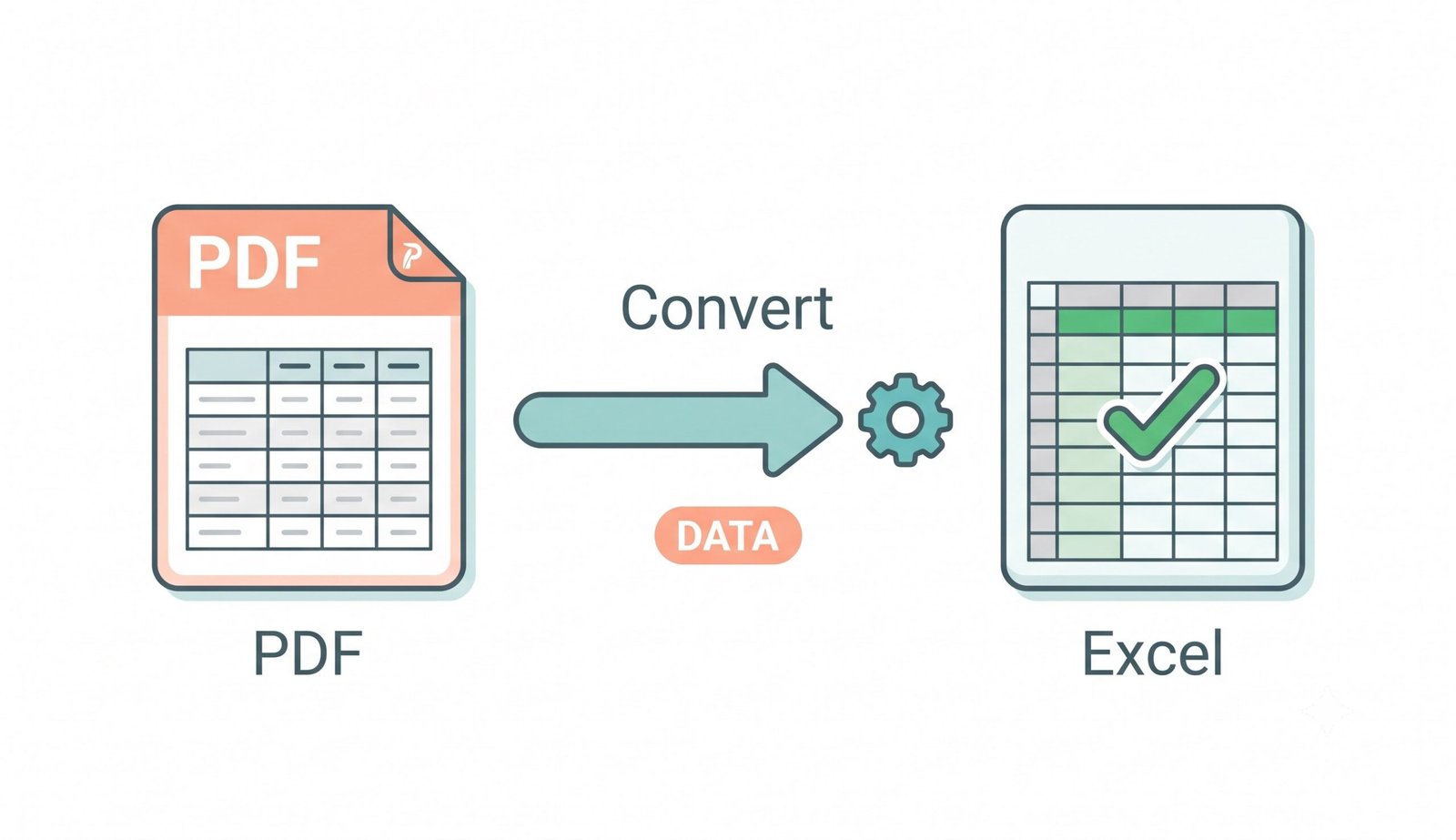
Offline PDF to Excel Converter: In-Memory Sandboxing
Financial statements, payroll audits, and personal tax returns are highly confidential. Our tool functions strictly as an offline PDF to Excel converter, processing binary buffers locally within your browser sandbox.
- Zero cloud uploads, no external database logging, and zero analytics eavesdropping.
- Completely safe for healthcare patient lists, trade secrets, and banking transactions.
- Operates 100% offline once the web application assets are cached in your browser.
Frequently Asked Questions
Everything you need to know about copying PDF tables into Excel, large file processing, and privacy.
To perfectly copy PDF table to Excel, simply upload your PDF document into our online tool. Our engine calculates exact text coordinates to align table columns and rows without mixing up adjacent data or collapsing multi-line strings.
Our interactive bounding-box tool is the best way to extract table from PDF to Excel online. You can highlight exact data boundaries on the visual canvas preview to isolate data grids for flawless formatting without messy text overlaps.
Yes! Because our engine utilizes local browser processing, you can effortlessly handle a PDF to Excel large file containing hundreds of pages instantly, completely bypassing server size limits and network timeouts.
Absolutely. When you convert bank statement to Excel free, your sensitive financial data remains 100% private. We operate as a strict offline PDF to Excel converter, meaning no files are ever uploaded or transmitted across the internet.
Yes! While converting your data, our engine strictly preserves the exact DSLR-level clarity, expert color grading, and facial features of any product images or portraits embedded alongside your tables.
After clicking Download Google Sheets (.csv), go to Google Drive, click "+ New > File Upload", upload the CSV file, right-click it, and select "Open with > Google Sheets".
Yes. Simply select the "Smart Multi-Page Merging" extraction mode. The tool automatically detects repeating table headers and appends every row into one unified master spreadsheet tab.