Lock PDF Documents Instantly
Add strong AES-256 password protection and permission restrictions to your PDF files securely inside your web browser. 100% private, zero file uploads.
Free Lock PDF Online – Secure Your PDF Documents Instantly
In today's digital workflow, protecting sensitive personal, business, and legal files from unauthorized viewing, editing, or copying is paramount. Our online Lock PDF Password Protect tool allows you to add military-grade password encryption and permission restrictions directly inside your web browser. Because the entire cryptographic locking procedure happens locally on your computer, your private files are never uploaded to remote servers.
How to Lock a PDF Using This Tool (Step-by-step)
Securing your PDF documents takes only a few seconds with our simple 4-step workflow:
- Select or Drag & Drop PDFs: Click the browse area or drag your PDF documents directly into the upload dropzone. You can upload multiple PDFs for batch processing.
- Set Your User & Owner Passwords: Enter a strong User Password (required to open the file) and an optional Owner Password (required to modify permission settings). Use our built-in Password Generator to create an unbreakable key.
- Choose Permission Restrictions: Check the specific restrictions you wish to apply, such as preventing editing, blocking text copying, preventing printing, or restricting form filling.
- Encrypt & Download: Click "Lock PDF Files Now". Our client-side encryption engine will apply 256-bit AES protection in exactly 10 seconds. Once ready, download your secured files individually or as a compressed ZIP package.
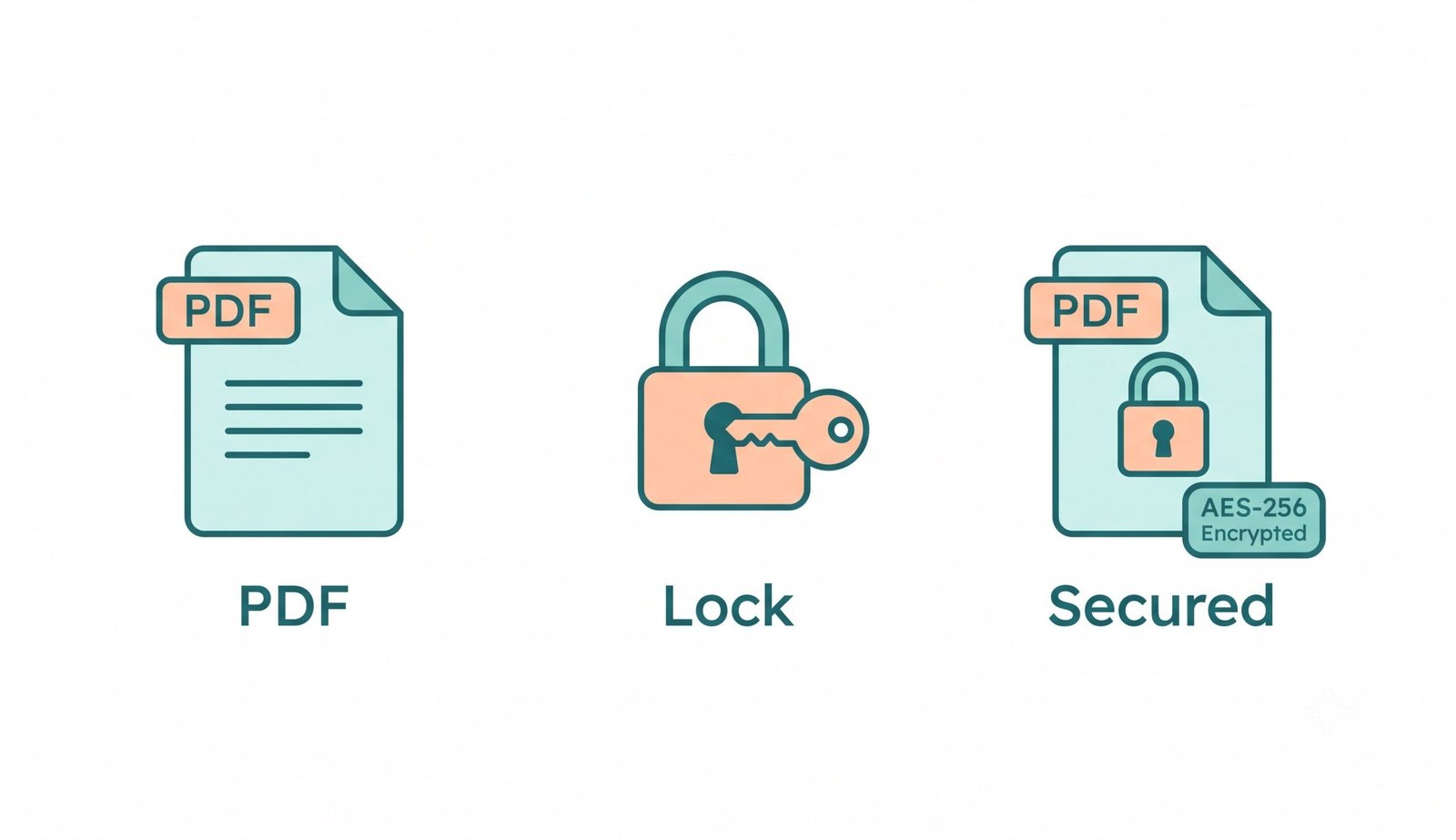
Key Features of Our Online PDF Lock Tool
- Dual Password Protection: Set independent User Passwords (for opening files) and Owner Passwords (for permissions management).
- Comprehensive Permission Restrictions: Lock editing, disable high-resolution printing, block text and image copying, prevent annotation additions, and lock form fields.
- AES-256 Bit Standard Security: Utilizes industry-standard ciphers recognized by Adobe Acrobat Reader, Apple Preview, Google Chrome, and mobile document viewers.
- Batch PDF Protection: Apply password protection and security policies to multiple PDF files simultaneously.
- 100% Client-Side Privacy: Built entirely with modern web browser technologies. Your passwords and PDF content never touch any external server.
Why Lock a PDF? (Benefits & Use Cases)
Locking PDF files is an essential practice across many professional industries and personal record-keeping:
For more technical details on standard PDF encryption specifications and cryptographic ciphers, you can learn more about PDF security and encryption from Adobe's official documentation.
- Financial & Business Reports: Keep corporate balance sheets, payroll details, and tax filings safe from unauthorized eyes.
- Legal Agreements & Contracts: Prevent third parties from altering signed contracts, non-disclosure agreements (NDAs), or legal briefs.
- Intellectual Property & Content Protection: Prevent unauthorized reproduction, copying, or printing of copyrighted ebooks, training manuals, and design drafts.
- Personal Identity Records: Password-protect bank statements, passports, medical records, and ID scans before sharing via email or cloud storage.
PDF Locking Best Practices
To maximize document security, follow these recommended practices:
- Combine uppercase letters, lowercase letters, numbers, and special symbols in your passwords.
- Use separate passwords for opening (User) and managing permissions (Owner).
- Store your passwords in a secure password manager—because client-side encryption is unbreakable, lost passwords cannot be recovered.