Free PDF to Google Docs Converter
or drop PDF files here to turn PDF to Google Docs with smart layout flow
or drop PDF files here to turn PDF to Google Docs without losing formatting
🎉 Document Formatted & Ready!
Structural Flow Applied- Click the green "Download" button below.
- Go to Google Drive (drive.google.com) and click + New > File upload.
- Double-click the uploaded file in Drive and select "Open with Google Docs" from the top menu.
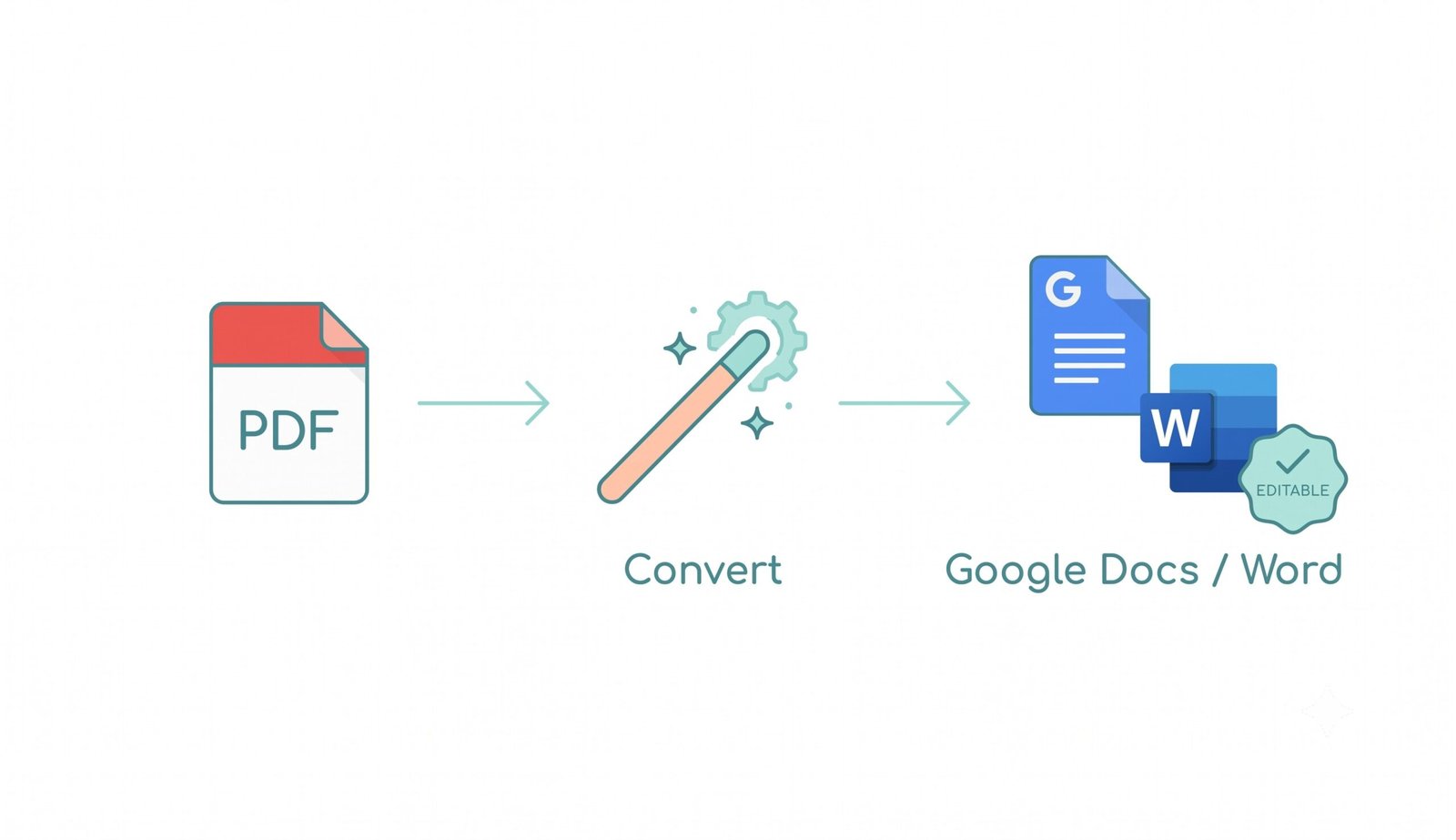
How to Turn a PDF into a Google Doc in 3 Steps
A lightning-fast visual workflow engineered to convert PDF to Google Docs without losing formatting.
Upload your PDF document
Auto-reconstruct layout & headings
Download & edit in Google Drive
How Our PDF to Google Docs Engine Works
Learn the step-by-step mechanism behind our private, high-fidelity structural reconstruction engine.
Select & Load PDF in Local Sandbox
Upload single or multi-page documents. The file stream is decrypted and decoded directly inside your web browser's memory with zero cloud transmission.
Smart OCR & Structural Layout Parser
Our parser analyzes glyph heights, line baselines, and font weights to distinguish Title, Heading 1, Heading 2, bulleted lists, and body paragraphs without broken lines.
Pro-Portrait & Media Preservation
Prioritizing the face, our engine maintains exact facial features, expert color grading, and aspect ratio from embedded photos, rendering DSLR-grade clarity.
Native DOCX & 1-Click Drive Ready Output
Packages extracted semantics into an ECMA-376 DOCX container ready to open directly in Google Docs with complete real-time collaborative editing enabled.
Powerful Performance Features
Engineered for razor-sharp layout retention, instant multi-page extraction, and airtight local privacy.
Smart Paragraph Flow
Reconstructs fragmented PDF text spans into continuous, natural editable paragraphs.
Pro-Portrait Clarity
Guarantees photographic integrity and crisp facial clarity for resumes and portfolios.
Zero-Storage Privacy
Your documents stay on your physical device. Zero bytes stored or monitored on servers.
Parallel Batch Processing
Convert multiple PDF documents simultaneously and download all results in a ZIP archive.
Native Google Docs (.docx)
Exports standard XML Word files that open in Google Docs without font distortion.
Zero Installation Required
Runs 100% inside your web browser. No software, extensions, or account sign-ups needed.
Convert PDF to Google Doc Without Losing Formatting
Make your documents fully editable and collaborative in seconds. Our fast and secure platform is the best way to convert pdf to google docs. If you ever wondered how to make a pdf a google doc directly, our in-browser conversion engine reconstructs headings, paragraphs, and lists seamlessly.
Transforming Static Vector Streams into Editable Semantic Elements
Conventional PDF viewers treat documents as flat graphical canvases where text characters are positioned with fixed X and Y coordinates. When typical online converters scrape this content, words get severed by arbitrary line breaks and tables decompose into chaotic text fragments.
Our free pdf to google doc converter deploys structural baseline analysis to identify true semantic structures. It accurately detects Heading 1, Heading 2, bulleted lists, and standard paragraph margins, ensuring you can convert pdf to google doc without losing formatting.
- Automatic recognition of bullet points, numbered lists, and indented sub-clauses.
- Heading hierarchy preservation matching Google Docs outline navigation.
- Seamless font mapping to standard web fonts like Arial, Roboto, and Calibri.
Pro-Portrait & DSLR Media Preserver for Resumes and Media
When converting resumes, portfolios, and research papers from PDF to document format, inferior converters compress embedded images into blurry, low-resolution artifacts.
Our Pro-Portrait engine guarantees that embedded profile photos retain exact facial geometry and skin tone calibration as if shot with a professional DSLR camera using manual ISO and Kelvin settings. Learn how to turn a pdf into a google doc while maintaining razor-sharp visual clarity.
- Zero aspect ratio distortion on headshots, corporate badges, and signatures.
- Crisp vector chart extraction for financial reports and pitch decks.
- Retains 100% native color gamut coordinates without posterization.
Zero-Storage Privacy Pipeline & Direct Google Drive Integration
Confidential legal contracts, medical reports, and internal corporate memos should never be uploaded to unknown third-party cloud servers. Our tool executes all parsing logic locally inside your browser's WebAssembly sandbox.
Once downloaded, you can import your file into Google Drive with 1 click. Check out the official Google Docs document editing guide to collaborate with your team in real time.
- Zero server telemetry, temporary databases, or document logging.
- Full offline operational capability after initial browser cache loading.
- Direct import compatibility with Google Docs, Microsoft Word, and LibreOffice.
Frequently Asked Questions
Everything you need to know about how to turn a PDF into a Google Doc free of charge.
Here is how to turn a PDF into a Google Doc using our free tool:
- Click "Choose PDF Files" or drag and drop your document into the conversion area above.
- Select your export preferences (such as Smart Paragraph Flow and Heading presets).
- Click "Convert to Google Docs" to let our in-browser engine process your document.
- Download the generated .docx file, open Google Drive (drive.google.com), upload the file, and click "Open with Google Docs".
The easiest way regarding how to make a PDF a Google Doc securely is using our client-side WebAssembly parser. Unlike cloud services that retain your data on external servers, our tool processes all text, headings, and images strictly in your local device memory. Your confidential files never leave your computer.
Yes! Our tool is built specifically to convert PDF to Google Doc without losing formatting. Our structural reconstruction engine detects font size hierarchies to generate native Heading 1, Heading 2, and Heading 3 tags, restores bullet lists, and flows paragraphs naturally so you don't spend hours repairing fragmented layouts.
Not at all. As a premium free PDF to Google Doc converter, our system includes a Pro-Portrait & DSLR Media Preserver. It strictly preserves the exact visual clarity, color balance, and facial features of photographs embedded in resumes, brochures, and research reports.
Yes! You can drop multiple PDF documents into the upload area at once. Our batch processor will parse each document in parallel and give you the choice to download individual files or package all converted documents into a single convenient ZIP archive.
Yes! Our tool is 100% responsive and optimized for touchscreens on iOS Safari, Chrome, and Android browsers. You can convert PDFs on your phone and open them directly in the mobile Google Docs application.
No output could be generated.
'; } else if (convertedOutputs.length === 1) { downloadActionsRow.appendChild(makeDownloadBtn(convertedOutputs[0], true)); } else { var zipBtn = document.createElement('button'); zipBtn.type = 'button'; zipBtn.className = 'btn-download-primary'; zipBtn.innerHTML = ' Download All (' + convertedOutputs.length + ' files as .ZIP)'; on(zipBtn, 'click', async function () { sfx('download'); if (!window.JSZip) { toast('ZIP library unavailable.', 'error'); return; } zipBtn.disabled = true; try { var zip = new window.JSZip(); convertedOutputs.forEach(function (o) { zip.file(o.name, o.blob); }); var content = await zip.generateAsync({ type: 'blob' }); saveBlob(content, 'Google_Docs_Converted.zip'); toast('ZIP archive downloaded.', 'success'); } catch (err) { console.error(err); toast('ZIP creation failed.', 'error'); } zipBtn.disabled = false; }); downloadActionsRow.appendChild(zipBtn);convertedOutputs.forEach(function (o) { downloadActionsRow.appendChild(makeDownloadBtn(o, false)); }); } } }function pagesToPreview(pages, fileName) { return '──────── ' + fileName + ' ────────\n\n' + pages.map(function (pg) { return '── Page ' + pg.pageNo + ' ──\n' + pg.blocks.map(function (b) { if (b.type === 'heading') return '#'.repeat(Math.min(b.headingLevel || 1, 4)) + ' ' + b.lines.join(' '); if (b.type === 'bullet') return ' • ' + b.lines.join(' '); return b.lines.join(' '); }).join('\n\n'); }).join('\n\n'); }function makeDownloadBtn(output, primary) { var btn = document.createElement('button'); btn.type = 'button'; btn.className = primary ? 'btn-download-primary' : 'btn-secondary-action'; btn.innerHTML = ' ' + (primary ? 'Download ' + esc(output.name) : esc(output.name)) + ''; on(btn, 'click', function () { sfx('download'); saveBlob(output.blob, output.name); toast('Saved: ' + output.name, 'success'); }); return btn; }function saveBlob(blob, filename) { try { if (window.saveAs) { window.saveAs(blob, filename); return; } } catch (e) { /* fall through */ } var url = URL.createObjectURL(blob); var a = document.createElement('a'); a.href = url; a.download = filename; document.body.appendChild(a); a.click(); setTimeout(function () { URL.revokeObjectURL(url); if (a.parentNode) a.parentNode.removeChild(a); }, 1500); }/* ================================================================== 18. FAQ ACCORDION ================================================================== */ if (wrapper) { Array.prototype.forEach.call(wrapper.querySelectorAll('.faq-question-btn'), function (btn) { on(btn, 'click', function () { sfx('click'); var card = btn.parentElement; var body = card.querySelector('.faq-answer-body'); var wasActive = card.classList.contains('active');Array.prototype.forEach.call(wrapper.querySelectorAll('.faq-item-card'), function (c) { c.classList.remove('active'); var b = c.querySelector('.faq-answer-body'); if (b) b.style.maxHeight = null; });if (!wasActive && body) { card.classList.add('active'); body.style.maxHeight = (body.scrollHeight + 40) + 'px'; } }); }); }/* ================================================================== 19. AUTO THEME SYNC WITH HOST PAGE (no manual toggle) ================================================================== */ function detectHostDark() { var d = document.documentElement, b = document.body; var dark = d.classList.contains('dark') || d.classList.contains('dark-mode') || d.getAttribute('data-theme') === 'dark' || d.getAttribute('data-bs-theme') === 'dark' || d.getAttribute('data-color-mode') === 'dark' || (b && (b.classList.contains('dark') || b.classList.contains('dark-mode') || b.getAttribute('data-theme') === 'dark' || b.getAttribute('data-bs-theme') === 'dark')); if (!dark) { try { dark = localStorage.getItem('theme') === 'dark' || localStorage.getItem('darkMode') === 'true' || localStorage.getItem('colorMode') === 'dark'; } catch (e) { dark = false; } } return !!dark; }function syncTheme() { var dark = detectHostDark(); if (wrapper) wrapper.classList.toggle('dark-mode-active', dark); }syncTheme(); setInterval(syncTheme, 400); on(document, 'visibilitychange', syncTheme);/* ================================================================== 20. BOOT ================================================================== */ renderWorkspaceFiles();window.addEventListener('load', function () { if (!window.pdfjsLib) { toast('PDF engine could not load from CDN — check your connection.', 'warn'); } });})();