Free Edit PDF Permissions
Easily change, restrict, or remove printing, copying, and editing permissions on your PDF documents directly in your web browser.
Free Edit PDF Permissions – Manage PDF Security Instantly
Managing document access controls and security policies is essential when sharing contracts, financial records, copyrighted materials, or private forms. Our online Free Edit PDF Permissions tool allows you to set, alter, or remove PDF owner passwords, restrict printing quality, block unauthorized text copying, and disable page modification—completely in your web browser with 100% privacy.
How to Edit PDF Permissions Using This Tool (Step-by-Step)
- Upload or Generate Sample PDF: Drag and drop your PDF files into the upload box or click "Test with Sample PDF" to evaluate the tool instantly.
- Enter Password (if encrypted): If your document already contains an owner password restriction, type it into the Current Owner Password field so our engine can load keys locally.
- Configure Permission Controls: Choose a quick preset (View Only, Read Only, No Printing, Full Access) or toggle individual settings for printing, editing, copying, and form filling.
- Apply & Download: Click "Apply Permission Changes". Our browser engine updates the file parameters and provides an instant secure download link after verification.
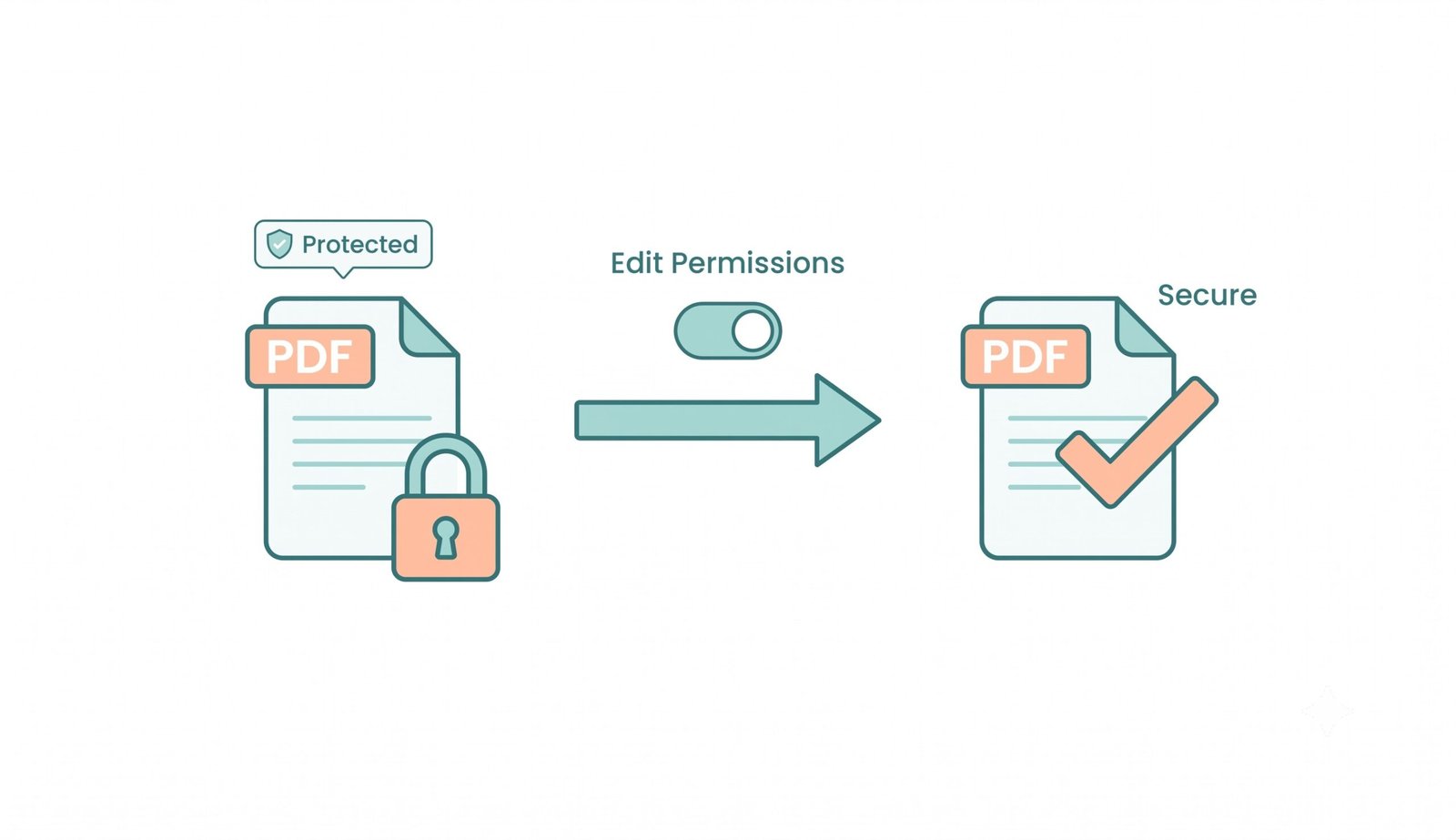
Key Features of Our PDF Permissions Editor
- 100% Client-Side Privacy: Operations execute inside your browser's memory using WebAssembly and JavaScript. No document is ever uploaded to external servers.
- Granular Control Settings: Separately adjust settings for high/low resolution printing, text & graphics copying, page assembly, annotation adding, and screen reader accessibility.
- One-Click Presets: Quickly apply predefined security policies such as Read Only or No Printing without configuring individual checkboxes.
- Owner & Open Passwords: Optionally set a User Password to require credentials upon opening, or set an Owner Password to prevent unauthorized permission edits.
- Batch Processing & ZIP Download: Process multiple PDF files simultaneously and download them individually or bundled in a single ZIP archive.
Why Edit PDF Permissions? (Benefits & Use Cases)
PDF access controls prevent unauthorized distribution and copyright violation. Businesses restrict editing on formal proposals and contracts to prevent tampering. Publishers disable text copying and high-resolution printing to safeguard digital publications. Educational institutions restrict page extraction on exam sheets. Learn more about document security guidelines in the Adobe PDF Security Guide.
PDF Permissions Best Practices
- Distinguish Password Types: Use a User Password to restrict opening the PDF, and an Owner Password to enforce printing/copying permissions.
- Keep Original Backups: Maintain an unencrypted backup copy of your original file before applying restrictive owner passwords.
- Use Strong Passwords: Avoid simple passwords when applying owner locks to ensure robust encryption against unauthorized tools.