Add Watermark to Photos in Bulk
or drop multiple photos here to bulk watermark photos online free with 100% local security
Drag & drop photos here or click to batch watermark images offline
Click and drag directly on the image to position the watermark anywhere.
Batch Watermarking Complete!
All images rendered at 100% native DSLR resolution with untouched color profiles.
How to Add Watermark to Photos in Bulk
A seamless 3-step client-side workflow engineered to batch watermark images at lightning speed.
Upload your batch photos
Customize text or logo
Download batch ZIP package
How Our Batch Watermarking Engine Works
Learn the advanced client-side pipeline behind our zero-upload, multi-threaded image protection architecture.
Stream Photos Locally into In-Memory RAM
Select hundreds of high-resolution RAW, JPG, PNG, or WebP images. Photos are buffered directly into your browser's dedicated memory sandbox without sending a single byte across the internet.
Proportional Smart Auto-Scaling
Whether your batch contains a mix of 1080p web exports and 45-megapixel DSLR RAW files, our engine dynamically scales font sizes and logo dimensions relative to individual photo bounds.
DSLR Color & Facial Feature Fidelity
Hardware-accelerated HTML5 2D canvases blend sub-pixel typography and transparent PNG alphas directly over target bitmaps, preserving skin tone grading and original portrait clarity.
Multi-Threaded Asynchronous ZIP Packing
Once rasterization concludes, in-memory blobs are bundled via JSZip into a single unified archive ready for one-click downloading onto desktop or mobile storage.
Powerful Features to Bulk Watermark Photos
Designed specifically for commercial photographers, content creators, and agencies requiring flawless batch processing.
100% Client-Side Private
Photos never touch cloud servers. Complete protection for unreleased studio shoots and confidential assets.
Smart Auto-Scaling
Automatically recalculates text and logo bounding boxes to look proportionally identical on 1080p and 4K images.
Interactive Live Zoom
Magnify the live canvas up to 300% to inspect fine typography, edge sharpness, and precise watermark placement.
Anti-Theft Tiling Mode
Generate a diagonal repeating watermark pattern across the entire frame to prevent unauthorized cropping.
DSLR Portrait Preserver
Maintains facial detail, camera color profiles, and visual sharpness without applying heavy destructive compression.
Multi-Sample Test Stages
Instant balanced, dark, and light test scenes let you calibrate white or dark watermarks before processing real work.
Securely Add Watermark to Photos in Bulk Offline
Protect your creative work and intellectual property in seconds. Our professional batch tool allows you to securely add watermark to photos in bulk right in your browser. Whether you need to bulk watermark photos online free, watermark multiple photos at once, or add logo to multiple photos, our client-side engine delivers unmatched speed, privacy, and visual precision.
Smart Proportional Auto-Scaling Across Mixed Photo Resolutions
When professional photographers shoot events, fashion catalogs, or weddings, their batches often contain mixed aspect ratios and resolutions ranging from 1080p web exports to 45MP uncompressed DSLR files. Standard web converters apply fixed pixel watermarks, resulting in tiny stamps on high-res shots and massive, intrusive overlays on web thumbnails.
Our smart auto-scaling engine computes the dimensional ratio of every individual image in real time. When you watermark multiple photos at once, text overlays and logo graphics maintain perfect visual balance across the entire collection.
- Automatically scales font and logo dimensions relative to canvas diagonal width.
- 9-point anchor alignment locks watermarks consistently in corners, edges, or centers.
- Drag-and-drop interactive canvas positioning for custom placement on any quadrant.
Preserving DSLR Pro-Portrait Quality & Original EXIF Metadata
Typical online watermarking utilities re-encode photos through heavy server compressors, destroying subtle skin tones, erasing embedded lens parameters (shutter speed, ISO, Kelvin temperature, copyright metadata), and softening facial sharpness in portrait photography.
When you batch watermark images with our offline framework, the rendering pipeline operates at native bit depth. Facial contours, fine hair strands, and delicate studio color grading remain 100% crisp and photo-realistic.
- Sub-pixel anti-aliased font rasterization with smooth alpha transparency blending.
- True color accuracy without posterization, banding, or color shifts in shadows.
- Retains full image resolution ready for gallery exhibition and high-end printing.
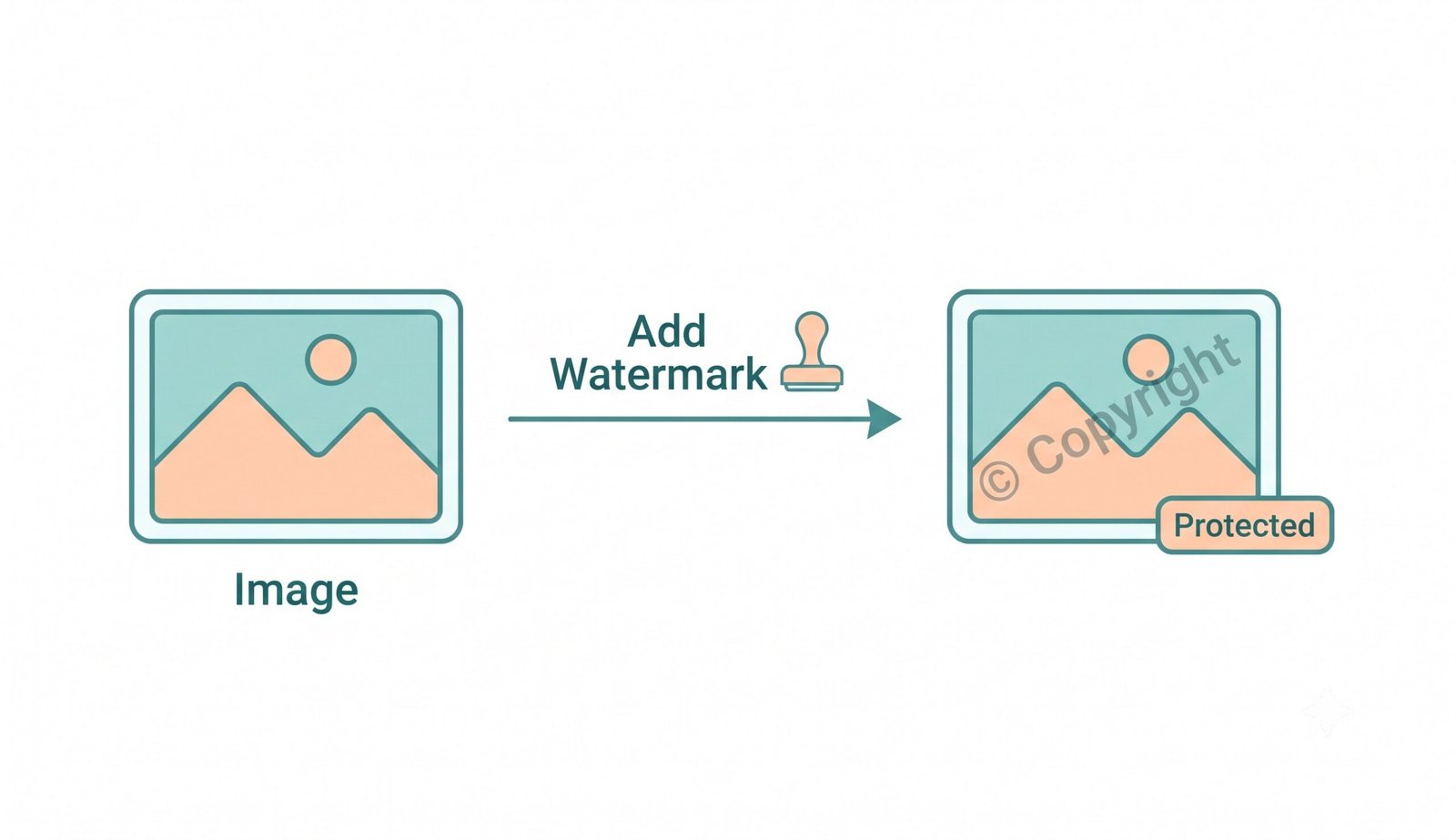
Batch watermarking workflow maintaining DSLR portrait clarity and transparent overlays.
100% In-Browser Execution: Zero Server Telemetry
Uploading confidential client shoots, commercial product mockups, or unreleased event photography to third-party cloud servers introduces grave privacy risks and bandwidth bottlenecks.
To learn more about watermark history and copyright standards on Wikipedia, visible markings have always served as proof of origin. Our browser-based solution provides total peace of mind by processing everything locally.
- Works offline without an active internet connection once the page is cached.
- Support to add logo to multiple photos with transparent PNG overlays.
- Instant packaging into a single ZIP archive ready for distribution.
Frequently Asked Questions
Everything you need to know about how to add watermark to photos in bulk securely and efficiently.
Yes! You can bulk watermark photos online free using our tool because it processes everything directly within your local web browser via HTML5 Canvas. Zero photos are transmitted to remote servers, guaranteeing 100% privacy and lightning-fast batch turnaround for your high-res photos.
Absolutely. When you watermark multiple photos at once, our smart auto-scaling engine dynamically computes your watermark text size or logo scale relative to each image's exact pixel dimensions, ensuring consistent placement and size across both 1080p and 4K pictures.
Not at all. As you batch watermark images, our advanced engine preserves your visual clarity, avoids aggressive compression, and strictly maintains the exact DSLR-level clarity, expert color grading, and facial features of all your portrait photography.
Because our platform bypasses slow server uploads and utilizes client-side memory rendering, you can add logo to multiple photos in just a few seconds and download them immediately in a convenient ZIP archive.
Yes! In the Logo Graphic settings tab, you can toggle the "Full Tiling Pattern Grid" option. This duplicates your logo or copyright mark diagonally across the entire image frame, preventing infringers from cropping out your credentials.
Yes, our tool is 100% mobile-responsive and works smoothly in mobile Safari, Chrome, and Firefox. You can select images directly from your phone's gallery, drag to position your watermark, and save the secured pictures easily.