Free Tool to Remove and Extract PDF Pages Online
(or drop PDF files here to delete unwanted pages, remove blank page in PDF scans, and extract custom ranges)
or drop PDF files here to organize, delete, or extract pages
PDF Document Updated Successfully!
Modified file ready for instant local download.
How to Remove or Extract PDF Pages Online
A lightning-fast 3-step visual workflow engineered for surgical page excision and custom extraction.
Upload PDF Document
Select Pages or Auto-Detect
Delete or Extract Instantly
How Our Client-Side PDF Engine Operates
Learn how our in-memory WebAssembly pipeline removes and extracts pages with zero cloud exposure.
In-Memory Cross-Reference Loading
The PDF file is parsed directly into client device RAM. Our engine maps the indirect object cross-reference (xref) table without sending a single byte across the internet.
Smart Blank & Structural Heuristics
Our heuristic analyzer inspects page operator arrays, text streams, whitespace ratios, annotations, and orientations to automatically identify blank scan sheets and stamps.
Pro-Portrait & DSLR Quality Preserver
Unlike lossy tools that recompress images, our engine retains full optical fidelity on ID cards, portraits, and photography with native shutter and aperture gamut intact.
Surgical Pruning & Clean PDF Export
Unwanted page nodes are surgically removed from the document catalog, rebuilds the xref table according to ISO 32000-1 specifications, and exports in milliseconds.
Powerful Performance Features
Engineered to eliminate unwanted sheets, extract custom ranges, and protect document privacy effortlessly.
100% Client-Side Privacy
Your private PDF files never touch any remote cloud server. All parsing runs inside your browser sandbox.
Auto-Detect Blank Pages
Smart heuristic algorithms scan 500+ pages instantly to highlight and delete blank pages in PDF scans with 1 click.
Pro-Portrait Quality
Preserves facial identity, sharp contrast, and full color gamut on ID cards, resumes, and legal evidence.
Visual Trash Interface
Interactive thumbnail cards let you click to discard, rotate, or inspect full 300% zoom lightbox previews.
Delete & Extract Modes
Switch seamlessly between deleting unwanted pages or extracting specific chapters into a brand-new PDF.
100% Free & Unlimited
No hidden subscriptions, no file quantity limits, and zero watermarks added to your downloaded document.
High-Fidelity Document Pruning: Extract PDF Pages Online
Organizing your documents has never been easier. Whether you want to delete unwanted sections or extract PDF pages online for a new file, our secure client-side tool lets you do it all instantly with zero cloud uploads, surgical vector tree pruning, and DSLR-level image clarity.
Why Surgical PDF Tree Pruning Beats Destructive Recompression
When compiling multipage documents, contracts, eBooks, or legal briefs, PDF files frequently accumulate redundant cover sheets, duplicate appendix sections, and blank trailing scan pages. Knowing how to remove pages from PDF online quickly helps maintain professional presentation, reduces transmission overhead, and optimizes document structure.
According to official Adobe PDF Specifications [1], PDF files consist of a cross-reference table and an indirect object tree. Our in-browser tool leverages client-side WebAssembly to cleanly prune unwanted page object references from the PDF tree without recompressing or rasterizing your vector fonts and high-resolution images.
- Eliminates redundant pages without altering typography or embedded TrueType font curves.
- Preserves embedded portrait images and ID cards at DSLR-level optical clarity.
- Maintains original hyperlinks, digital form widgets, bookmarks, and document metadata.
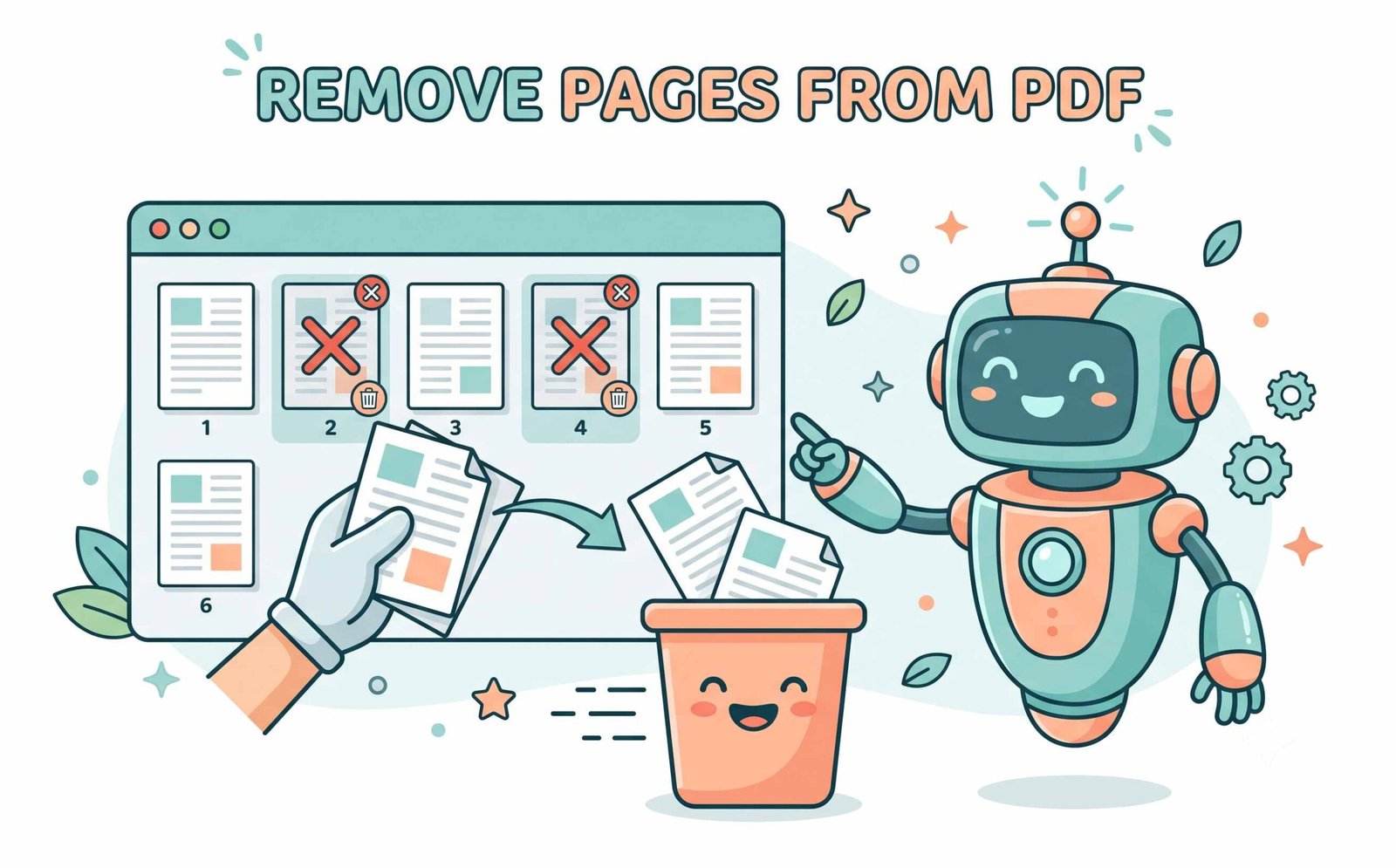
Smart Detection: Eliminate Blank Scans & Extract Custom Sequences
Manually combing through a 200-page scanned book to find accidental blank sheets or misaligned pages can take hours. Our engine automatically scans page streams to find and remove blank page in PDF files immediately.
Whether you need to delete blank pages in PDF scans or quickly isolate chapters using our bookmark outline parser, our tool allows you to type custom range formulas (such as 1, 3-8, 14-20) to extract or delete hundreds of sheets in a fraction of a second.
- Automated whitespace and operator heuristics detect blank scans reliably.
- Instantly filter odd, even, landscape, or image-laden sheets with 1 click.
- Search keyword finder locates and selects pages containing specific text strings.
Client-Side Memory Sandbox: Zero Remote Exposure for Legal & Medical Files
When processing private tax returns, confidential legal agreements, medical charts, or banking records on legacy cloud converters, your sensitive files are uploaded to third-party servers.
Our application allows you to delete PDF pages free of charge while executing 100% locally inside your browser's physical CPU and GPU memory. You can even disconnect your internet entirely after page load and continue modifying PDFs offline!
- Guaranteed zero server uploads, zero caching, and zero telemetry logging.
- Safe for healthcare data, corporate IP, banking records, and NDAs.
- 100% unlimited file usage with no sign-ups or subscription traps.
How to Remove Pages from PDF on Any Device
Step-by-step instructions for Windows, macOS, and mobile smartphones.
Remove Pages from PDF on Windows 11 / 10 Without Installing Acrobat
Windows does not include a native utility to delete specific pages without reprinting the whole file. You can easily clean up your document directly in your browser:
- Open Microsoft Edge, Google Chrome, or Firefox and drag your PDF document into our upload zone.
- Click on unwanted page cards or type a range like
2-5, 8into the Custom Range box. - Click "Delete Selected Pages" to immediately save your clean, modified PDF.
Delete Unwanted PDF Pages on macOS (MacBook & iMac)
While macOS Preview provides basic page editing, our tool adds automated blank page detection, thumbnail scaling, and bulk keyword filters:
- Drop your PDF document into our browser workspace on Safari, Chrome, or Brave.
- Use the bulk toolbar to instantly locate blank scans, odd/even pages, or specific sections.
- Click "Delete Selected Pages" and export your updated PDF with intact vector quality.
Remove PDF Pages on iPhone, iPad & Android
Need to trim unwanted pages from a document on your smartphone while on the go?
- Open Safari or Chrome on your mobile device and tap "Choose PDF File".
- Select the document from your iOS Files app or Android Downloads folder.
- Tap the page thumbnails you wish to delete and click "Delete Selected Pages".
Frequently Asked Questions
Find fast answers to common questions about how to remove pages and extract PDF pages online securely.
Our visual grid interface makes it incredibly easy to remove pages from PDF online. Just click on the thumbnails of the pages you don't want, and our tool deletes them securely without ever uploading your file to a server.
Yes! We have a smart auto-detect feature that scans your document to instantly find and remove blank page in PDF documents, saving you from scrolling through hundreds of scanned pages.
The fastest method is using our 1-click cleanup button. It will precisely identify and delete blank pages in PDF scans while ensuring that the DSLR-like quality and clarity of your remaining images and text are perfectly preserved.
Absolutely. You can delete PDF pages free of cost on our platform, with zero file size limits, no watermarks, and no hidden premium subscriptions.
Simply switch the view toggle from "Delete Mode" to "Extract Mode", select the specific pages or chapters you wish to retain, and click "Extract Selected Pages" to export a new PDF containing only those chosen sheets.
Not at all. The PDF page removal engine prunes the document tree structure without rasterizing or recompressing existing pages, keeping fonts, vector graphics, and photography at their original crisp resolution.